
Manaby Features: A Complete Guide
Everything Manaby can do—from split views to Zen mode, themes to keyboard shortcuts.

Table of Contents
- Command Palette
- Split View
- Zen Mode
- Themes
- Built-in Ad Blocker
- Password Manager
- Search Engines
- Keyboard Shortcuts
- Find in Page
- Downloads
- Incognito Mode
- Session Restore
- System Integration
Manaby packs a lot of features into a clean interface. Here’s everything you can do with it.
Command Palette
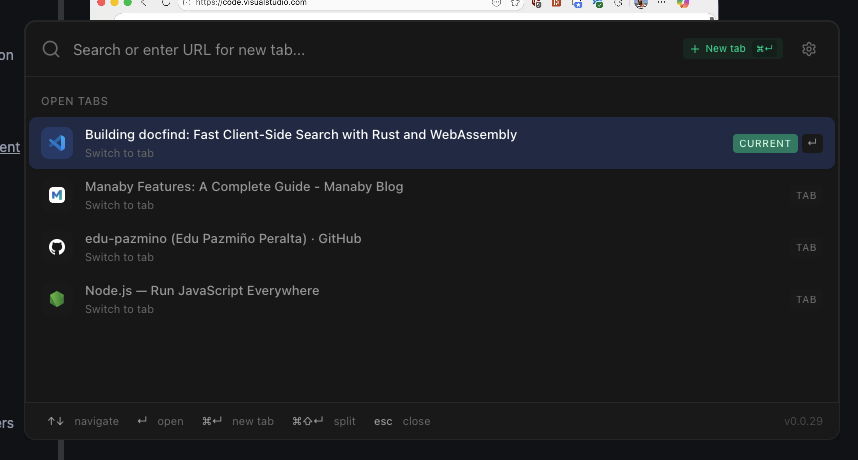
Shortcut: Cmd+L (Mac) / Ctrl+L (Windows/Linux)
The command palette is the fastest way to do anything in Manaby. Inspired by Raycast and VS Code, it’s a single input that handles:
- Navigation – Type a URL or search query
- Tab switching – Type the name of an open tab to jump to it
- Settings – Access any setting directly
- Search engines – Type
ddgfor DuckDuckGo,gfor Google, etc.
The palette learns from your behavior and surfaces suggestions based on your history.
Split View
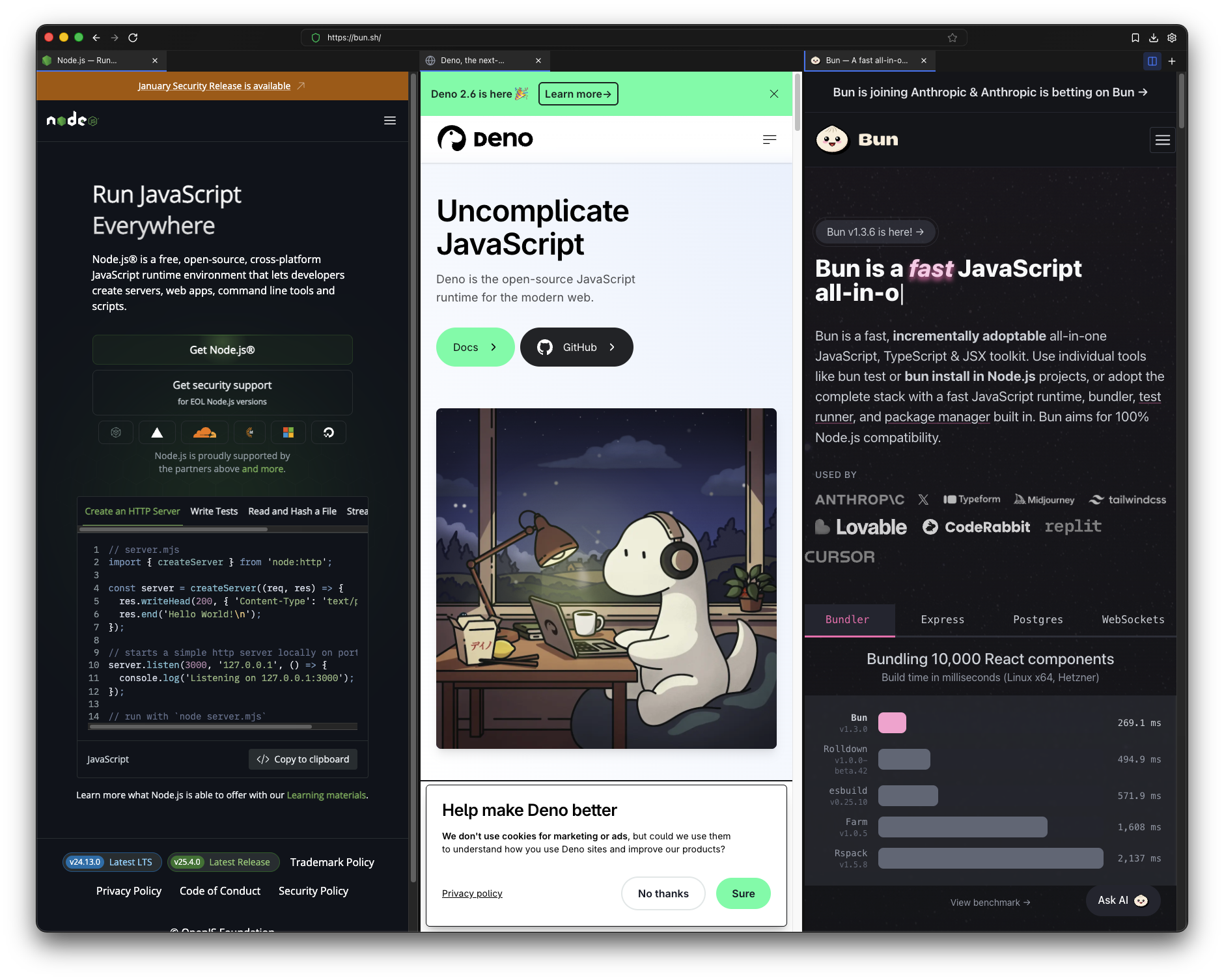
Shortcuts:
Cmd+\– Split current tab to the rightCmd+Shift+\– Split current tab below- Drag a tab to the edge of the window to create a split
Work with up to 4 pages simultaneously in a single window. Each split group:
- Has independent tabs
- Can be resized by dragging the separator
- Maintains its own focus state
- Supports all the same features as a regular window
Use cases:
- Compare documentation while coding
- Watch a video while taking notes
- Reference one page while filling out a form
- Keep chat open while browsing
Zen Mode
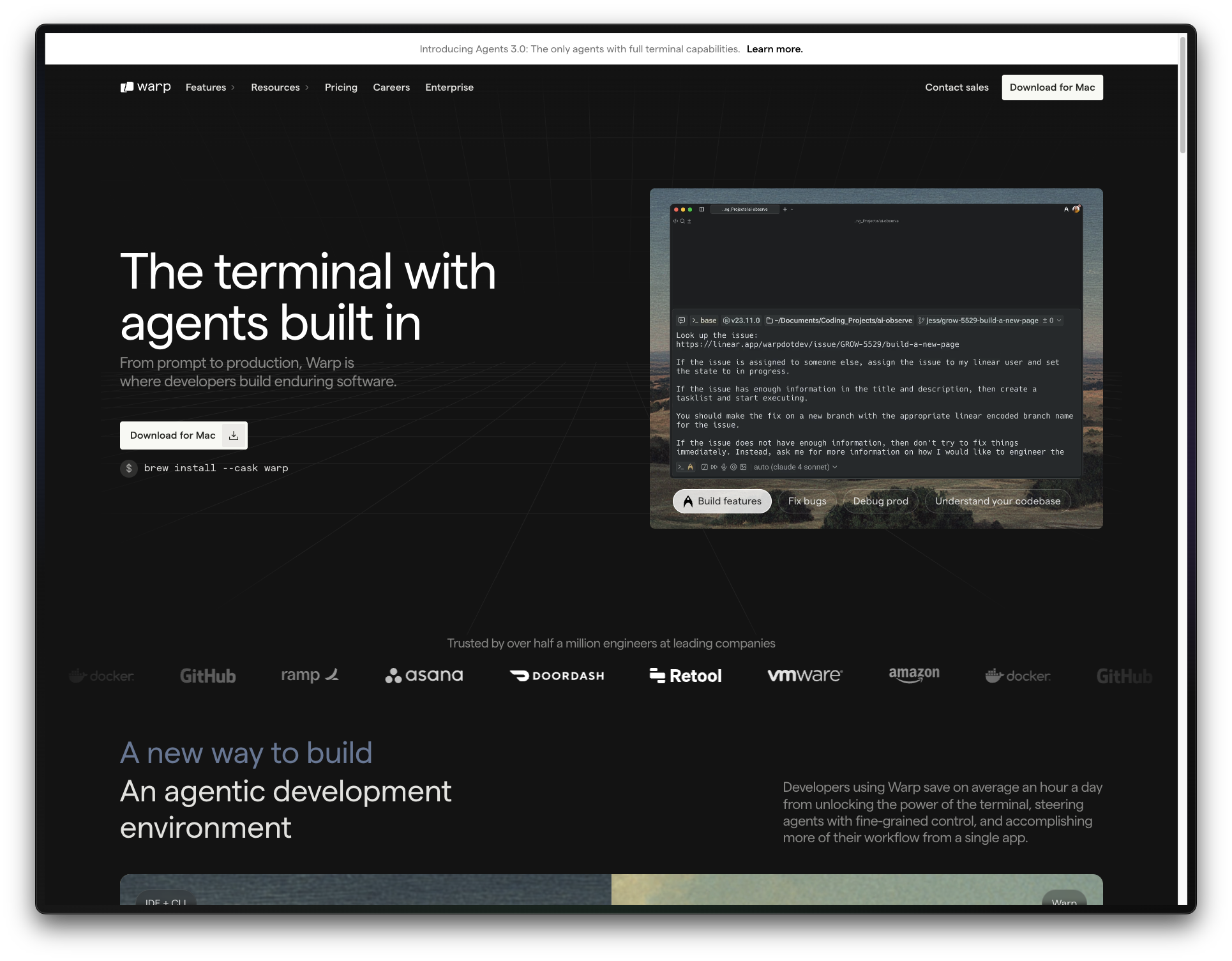
Shortcut: Cmd+Shift+S (Mac) / Alt+Shift+S (Windows/Linux)
Zen mode removes everything except the content. No tabs. No toolbar. No distractions.
In Zen mode:
- The page fills the entire window
- Navigation happens via keyboard shortcuts
- A subtle gradient indicates which split is focused (in split view)
- Press the same shortcut to exit
Perfect for reading long articles, writing, or when you need to focus completely.
Themes
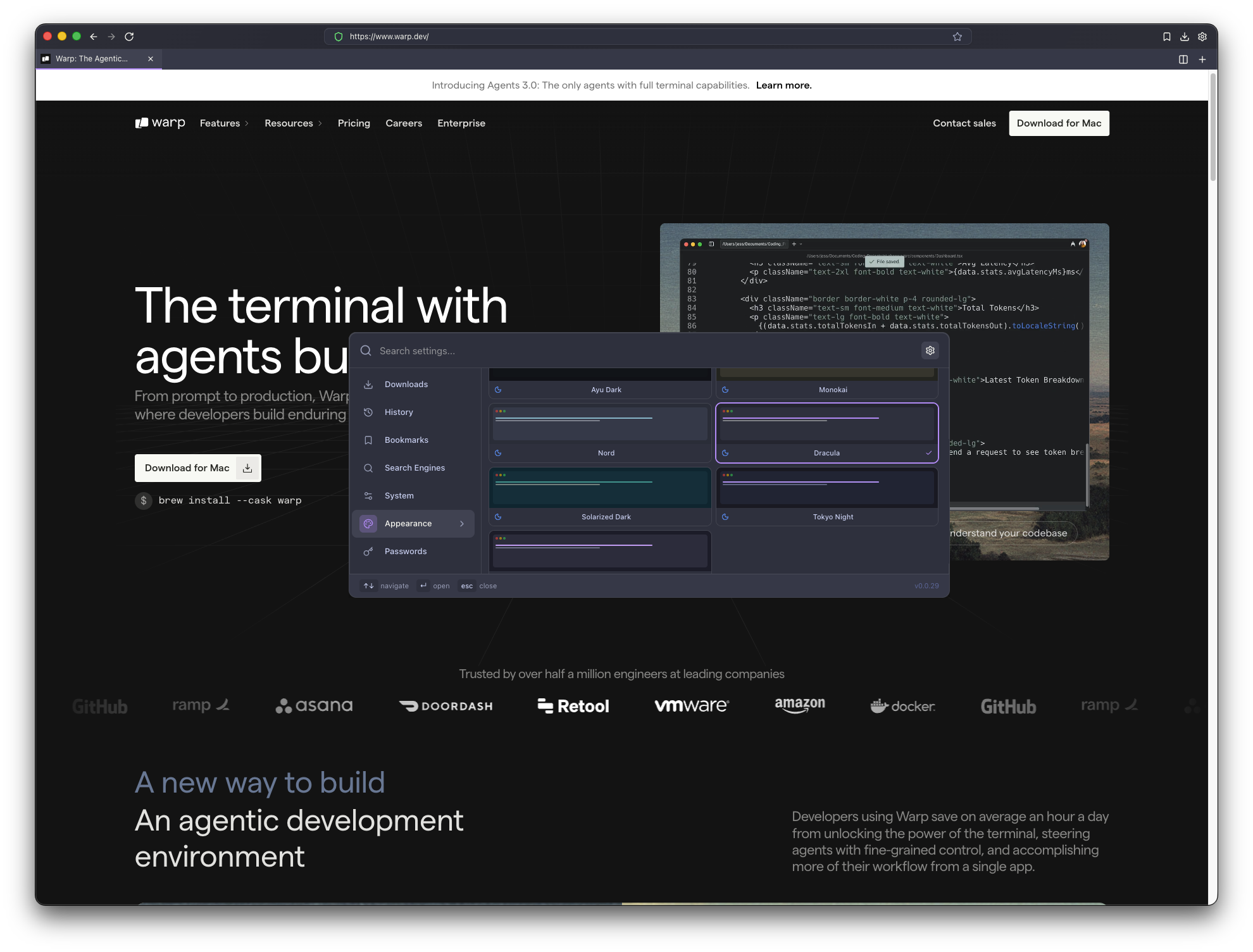
Access: Command palette → type “theme” or Settings → Appearance
Nine carefully chosen themes:
| Theme | Description |
|---|---|
| Dark | Default. Clean, neutral dark mode |
| Light | Bright and clean for daytime use |
| Nord | Cool blue-grey palette from the Arctic |
| Dracula | Popular purple-based dark theme |
| Tokyo Night | Soft, neon-inspired aesthetic |
| Catppuccin | Pastel, soothing dark theme |
| Monokai | Classic warm dark theme from Sublime |
| Ayu | Minimal and modern |
| Solarized | The original low-contrast theme |
Themes change instantly—no reload needed.
Built-in Ad Blocker
Powered by: Ghostery Adblocker
Ads and trackers are blocked by default. The shield icon in the address bar shows the status:
- Shield full – Protection active
- Shield empty – Site whitelisted
Click the shield to:
- See what’s being blocked
- Whitelist the current site
- Access blocker settings
You can whitelist sites you want to support while keeping protection everywhere else.
Password Manager
Access: Command palette → type “passwords” or Settings → Passwords
A local-only password manager:
- Master password – Encrypt all your passwords with a single key
- Autofill – Automatically fill login forms
- No sync – Your passwords never leave your machine
- Import – Bring passwords from other browsers
The password manager uses AES encryption. Without the master password, the stored data is unreadable.
Search Engines
Access: Settings → Search
Choose your default search engine:
- DuckDuckGo
- Brave Search
- Bing
- Yahoo
- Ecosia
- Startpage
You can also use keywords to search with a specific engine:
| Keyword | Engine |
|---|---|
g | |
ddg | DuckDuckGo |
b | Brave |
bing | Bing |
Example: Type ddg privacy browser to search DuckDuckGo for “privacy browser”.
Keyboard Shortcuts
Manaby is built for keyboard-first navigation:
| Shortcut | Action |
|---|---|
Cmd+T | New tab |
Cmd+N | New window |
Cmd+Shift+N | New incognito window |
Cmd+W | Close current tab |
Ctrl+Tab | Next tab |
Ctrl+Shift+Tab | Previous tab |
Cmd+L | Focus address bar / Command palette |
Cmd+, | Settings |
Cmd+F | Find in page |
Cmd+R | Reload |
Cmd+Shift+I | Developer Tools |
Cmd+Shift+S | Toggle Zen Mode |
Cmd+Shift+B | Toggle Ad Blocker |
Find in Page
Shortcut: Cmd+F (Mac) / Ctrl+F (Windows/Linux)
Standard find functionality:
- Type to search
Enterfor next matchShift+Enterfor previous match- Match counter shows current/total
- Highlights all matches on the page
Downloads
Access: Download button in toolbar or Settings → Downloads
- See download progress in real-time
- Open downloaded files directly
- Open containing folder
- Configure download location
- Option to ask before each download
Incognito Mode
Shortcut: Cmd+Shift+N (Mac) / Ctrl+Shift+N (Windows/Linux)
Incognito windows:
- Don’t save browsing history
- Don’t save cookies after closing
- Show a purple indicator in the toolbar
- Are completely separate from normal windows
Note: Incognito doesn’t make you anonymous online. Your ISP and visited sites can still see your activity.
Session Restore
Manaby automatically saves your session:
- Open tabs
- Tab positions
- Split view layout
- Window size and position
When you reopen Manaby, everything is restored exactly as you left it.
System Integration
Access: Settings → System
- Set as default browser – Handle all web links
- Confirm before closing – Prevent accidental closes with multiple tabs
- Custom homepage – Set any URL as your start page
Still have questions? Download Manaby and explore for yourself. The best way to learn is by using it.